How to Place a Wholesale Order on Hector Footwear: A Step-by-Step Guide
From browsing the catalogue to tracking a shipped order, here's exactly how to place a wholesale order on the Hector Footwear buyer portal, start to finish.
By Hector Footwear Team · August 1, 2026 · 3 min read
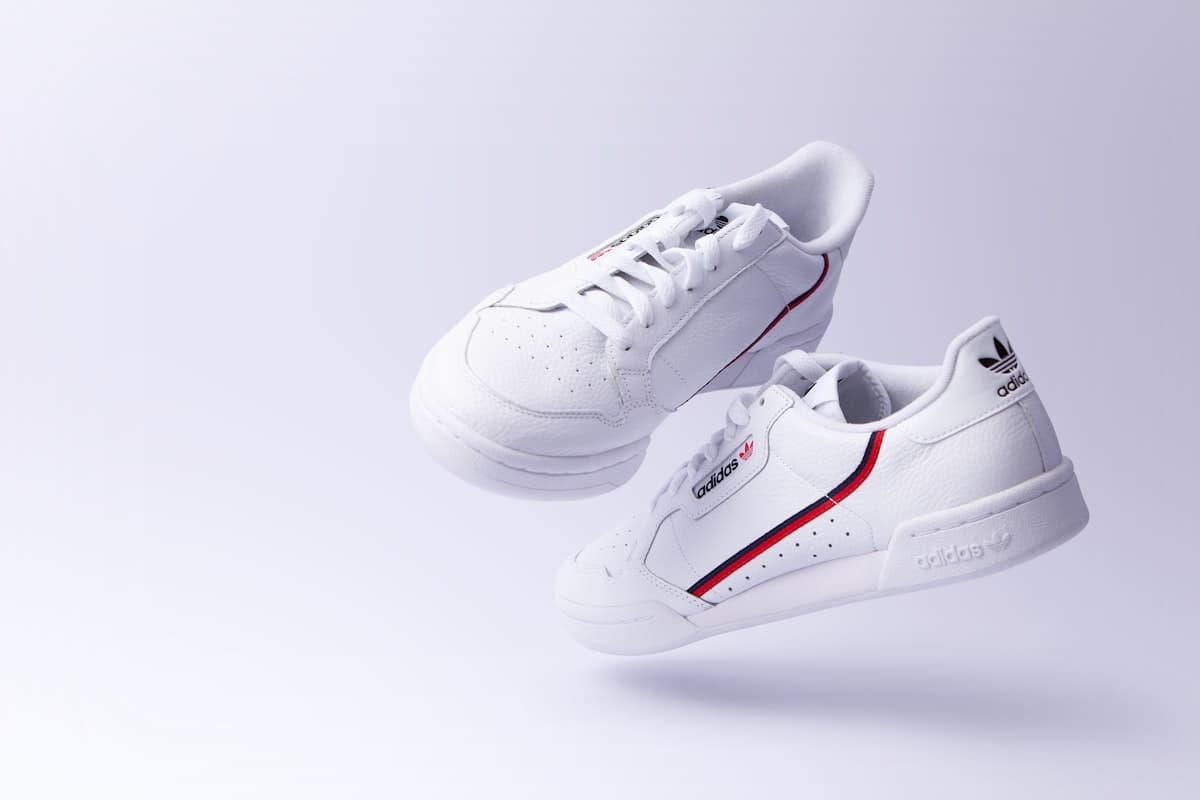
If you're placing your first order with Hector Footwear — or just want a refresher — here's the whole process, from an approved account to a tracked shipment.
1. Sign in with your approved wholesale account
Every order starts with an approved buyer account. If you haven't applied yet, use "Apply for Wholesale Access" and tell us about your store — most applications are reviewed within two business days. Once approved, sign in from the account icon in the header.
2. Browse the Collection or jump straight to Quick Order
There are two ways to build an order, and which one you use depends on what you already know you want. Browsing the Catalogue is best when you're discovering new styles — full photography, size charts, and spec sheets per product. Quick Order is a fast, table-style screen for buyers who already know their core styles and just want to build quantities across many of them at once, without clicking into each product page.
3. Choose your box sizes and colorways
Hector Footwear sells wholesale only in fixed pre-pack boxes — 8, 10, or 12 pairs — spread across a set EU 40–45 size ratio, so the box is the ordering unit, not the individual size. On a product page, the matrix ordering grid lets you set a quantity per colorway and box type, with real on-hand stock shown per cell so you never order more than what's actually available.
4. Add to cart and watch your running pair count
As you add boxes from different styles and colorways, your cart tracks a running total of pairs. There's a single order-wide minimum — 40 pairs — rather than a minimum per style, so feel free to mix as many styles, colorways, and box sizes as you like to reach it.
5. Review your cart
The cart page shows every line item, box type, and a subtotal at list (net-60) pricing as a pre-checkout reference. This is also where you can save the whole cart as a named assortment if it's a combination you expect to reorder again later.
6. Choose a ship-to address
At checkout, pick from your saved ship-to addresses, or add a new one. Ship-to addresses are managed permanently in your account area, so you only need to enter a new location once.
7. Select your payment terms
Pricing is based on the payment terms you choose for that specific order, not a fixed account tier: prepay for 10% off, net-30 for 5% off, or net-60 at list price. Your account has a default shown on your dashboard, but you can choose different terms per order — anything outside your default is simply routed to your rep for a quick credit check rather than blocked.
8. Submit the order
Once terms and shipping are confirmed, submit the order. You'll get a confirmation with your order number, and the order immediately appears in your dashboard's order history.
9. Track status from your dashboard
Every order shows a real status timeline — submitted, confirmed, shipped, delivered — plus tracking number and carrier once it ships. No need to email your rep to check where things stand.
10. Reorder in one step next time
If you saved the cart as an assortment in step 5, your next reorder is a single click from your dashboard instead of rebuilding the whole order from scratch — worth doing for any combination you expect to buy again.
That's the full loop. If anything is unclear along the way, your dedicated territory rep — shown on your dashboard — is the fastest way to get a real answer.
Ready to source from Hector Footwear?
Browse the collection or apply for a wholesale account.